
What's new
Portal Login Filler 1.3: PIN lock, extra fields and two-screen logins
Lock the extension with a PIN, fill boxes such as Mobile or Email from your own columns, and pick the Password on a portal's second screen.
PIN lock
Settings → PIN lock turns on a 4–8 digit PIN. While locked, the side panel shows only the PIN screen — no clients, no filling. It locks again when Chrome closes, when you lock the screen (Windows + L), after the idle time you choose, or with the 🔒 button.
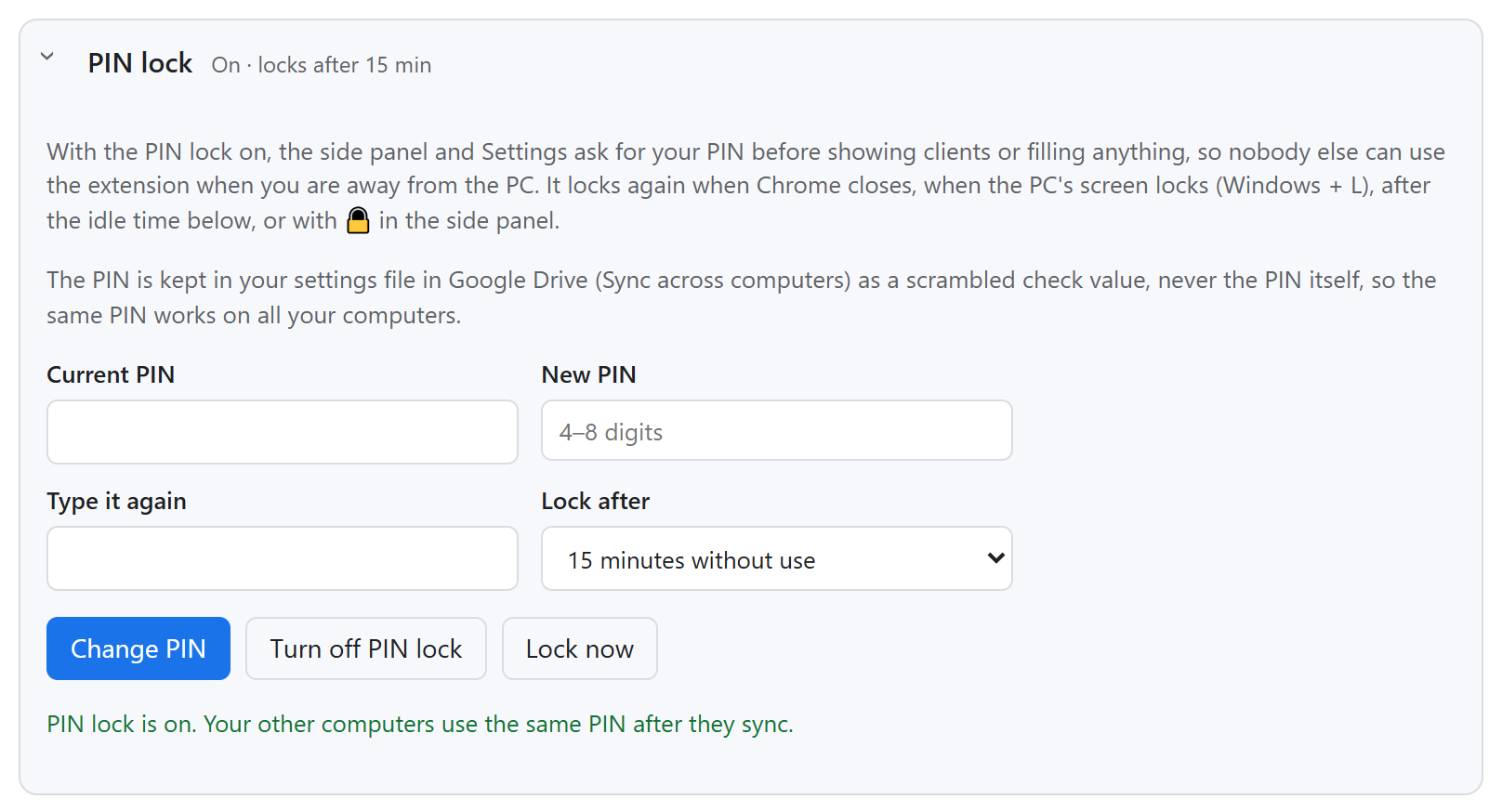
- One PIN for every computer: only a protected hash is synced, never the PIN itself.
- After 5 wrong tries each further try waits longer.
- Forgot PIN? Sign in with Google again to turn the lock off.
- Right after installing, Settings opens at PIN lock with a welcome, and the side panel asks once whether to set one up.
Extra fields
Some portals ask for more than User ID and Password — a mobile number or email. Add up to 6 extra fields per portal: give it a name, Pick the box on the page and choose the client-list column its value comes from (add that column to your sheet first).
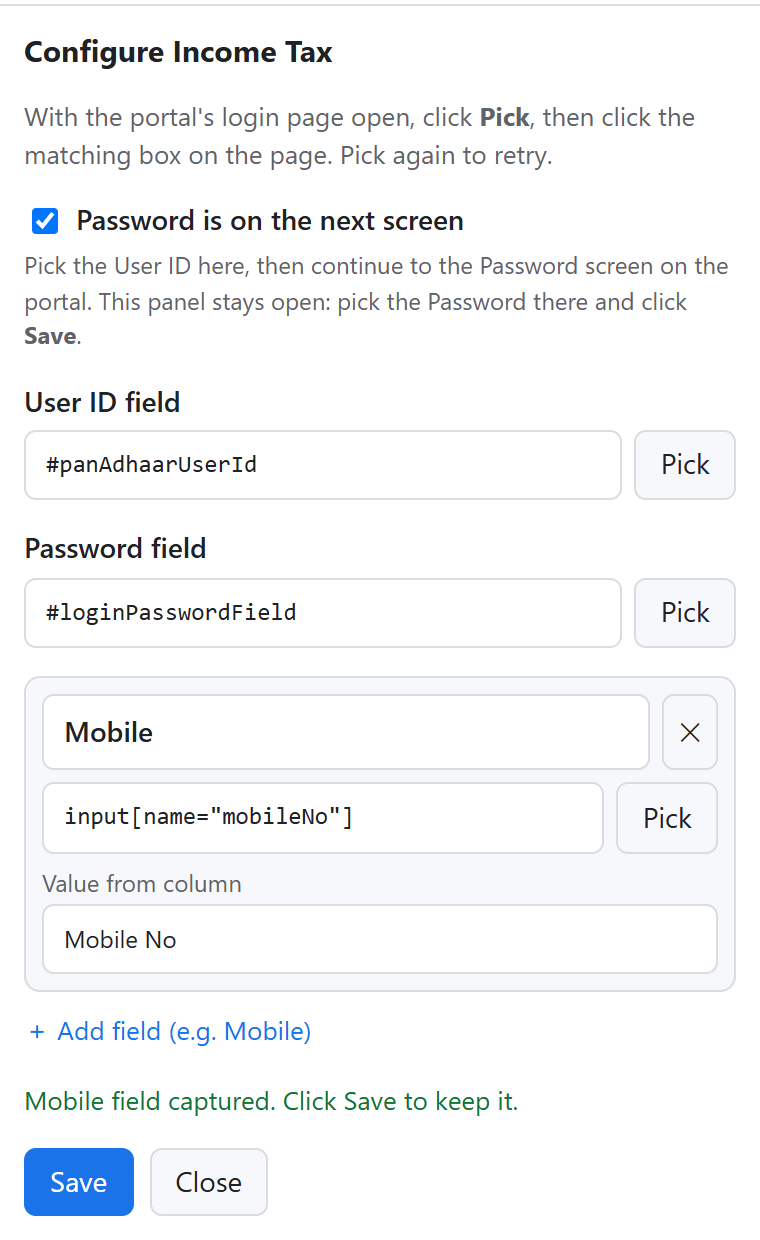
Password on the next screen
In Configure Portal, tick Password is on the next screen, pick the User ID, continue on the portal and pick the Password there — the side panel stays open. Portals such as Income Tax already work this way: click the client once for the User ID and again for the Password.
Also in 1.3
- Pick buttons in the Settings portal form: it brings up the portal's tab while you click the box, then returns.
- Login style “User ID only” for OTP logins such as TTD: only the mobile / User ID is filled.
- Version 1.3.1: the free trial starts with the same Google sign-in that connects your Sheet.